Health to Grok: email Apple Health to your Grok Bot inbox every night
Health to Grok is an iOS Shortcut that emails your Apple Health data to your Grok Bot inbox every night. Open the iCloud install link (or download the signed shortcut below), enter your Grok Bot email and Apple Watch name when it asks, allow Health and Mail permissions on the first run, then add a Time of Day automation for 8:00 PM. Built and tested on iOS 27.2 (iPhone 16e).
Grok Bot does not have an Apple Health integration yet. This recipe is a practical workaround for anyone using Grok Bot who wants nightly Health context in their inbox. For the broader pattern of agent-ready content and tools, see AI agents for growth: SEO, AI visibility and RevOps.
What it sends
Every day at 8:00 PM it sends two emails. Each one has a readable summary, followed by the same data as CSV rows at the bottom. Mail puts the CSV inline as text, not as an attachment. Each value carries the date it is from.
Daily totals (steps, distance, flights, energy, exercise, and stand minutes) count one device, your Apple Watch if you have one, so the iPhone and Watch are not added together. They land close to the Health app, though not always on the exact number, because anything only the other device recorded is left out.
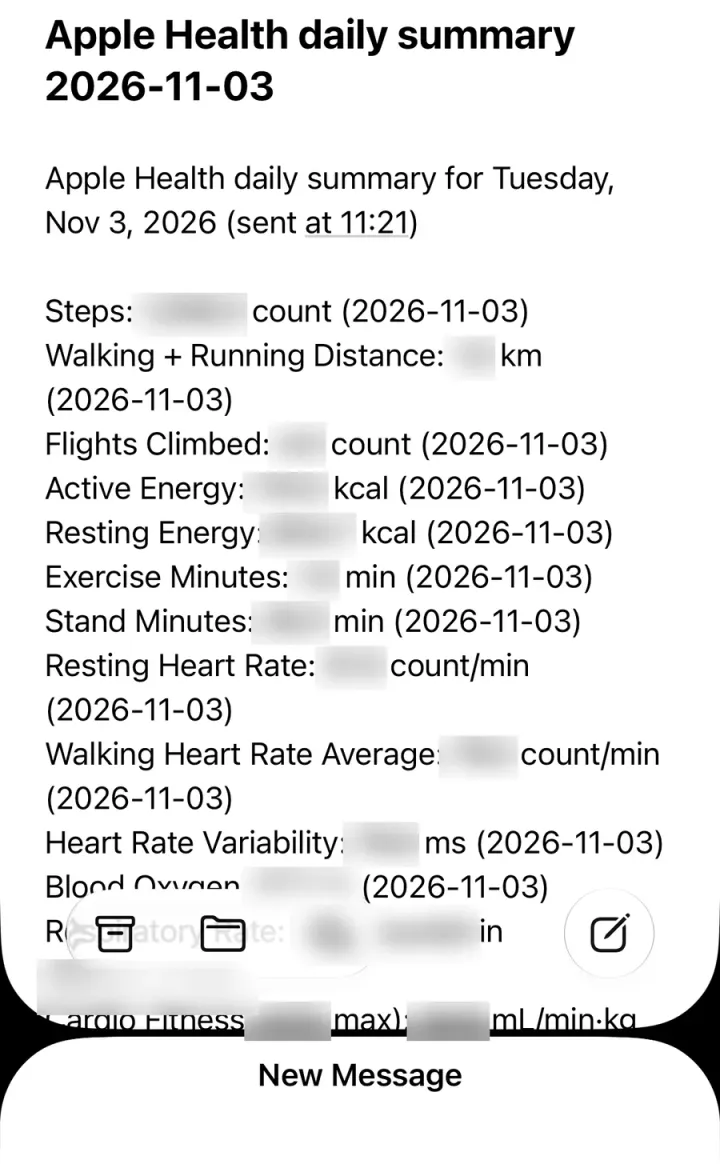
Daily summary: steps, walking + running distance, flights climbed, active and resting energy, exercise and stand minutes, resting and walking heart rate, HRV, blood oxygen, respiratory rate, and VO2 max.
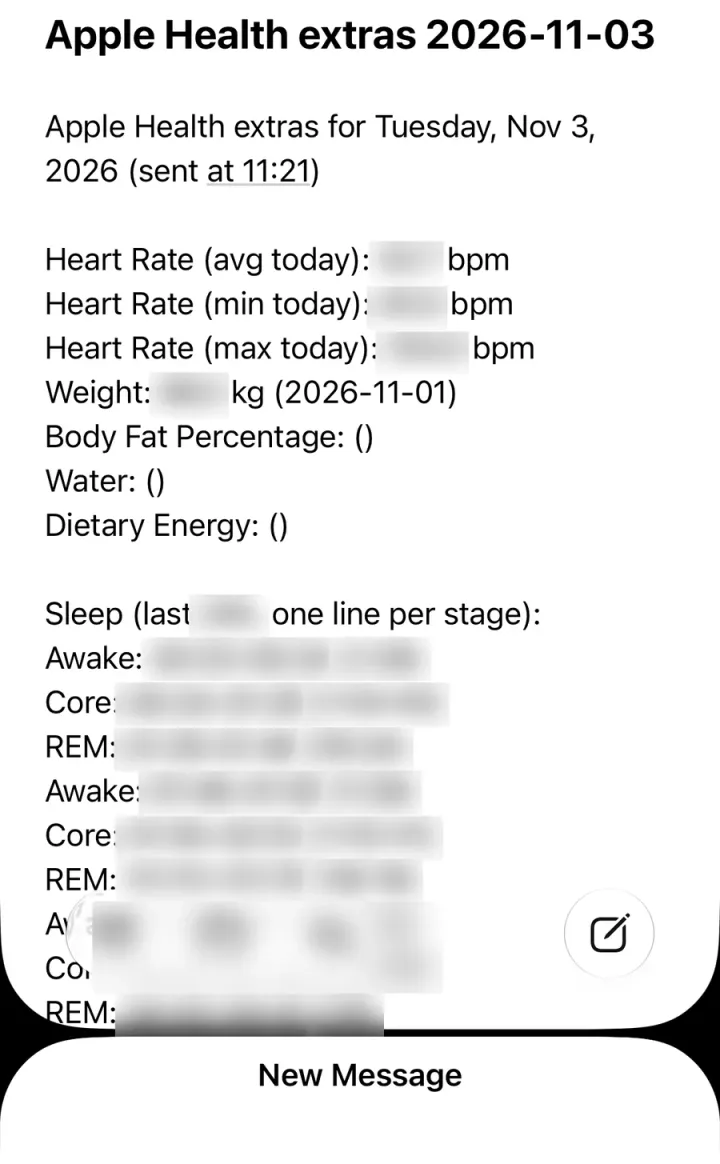
Extras: today’s heart-rate average, minimum and maximum, plus weight, body fat, water, dietary energy, and the last 24 hours of sleep stages.
Setup
-
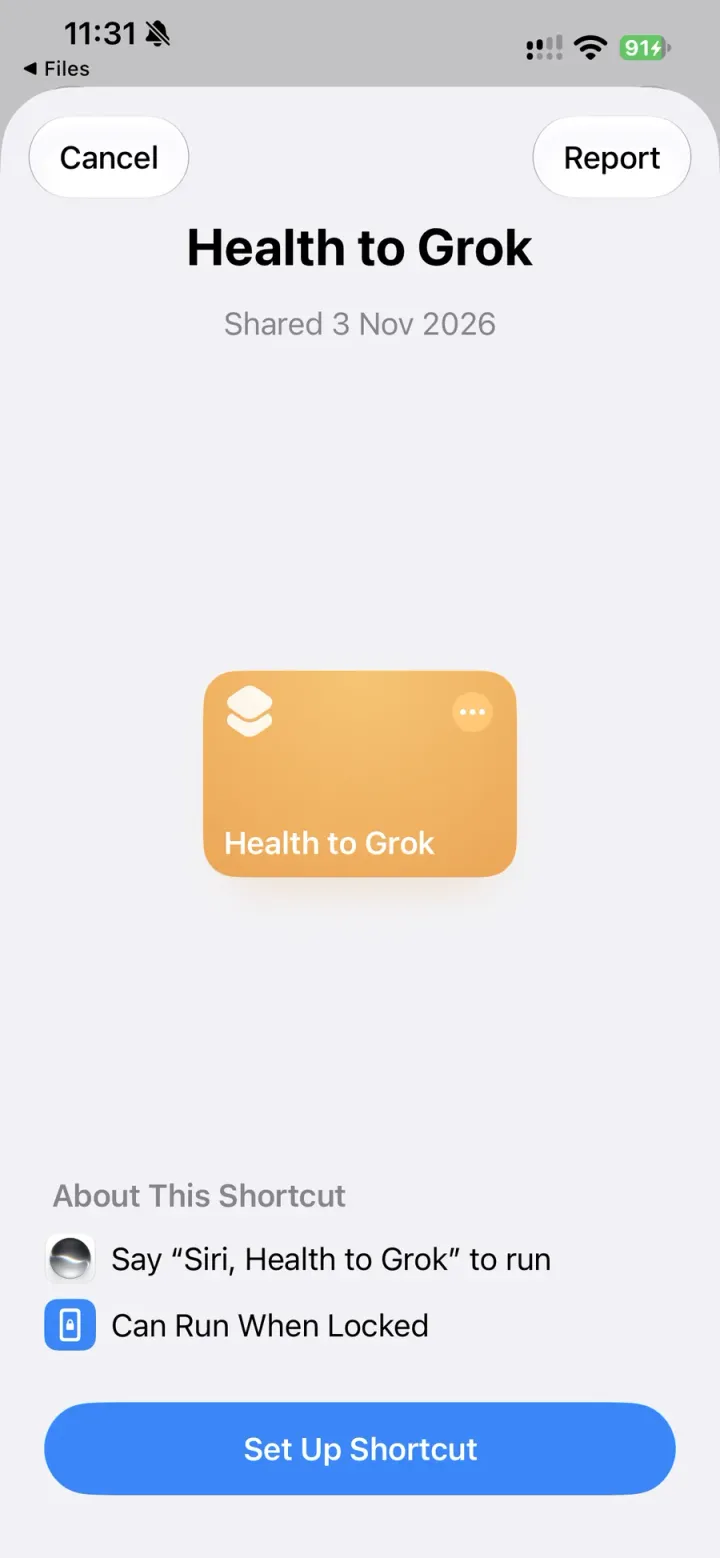
Add the shortcut. Open the iCloud install link and tap Set Up Shortcut.
Secondary option: download the signed shortcut file (
health-to-grok.shortcut) and open it on your iPhone or Mac.
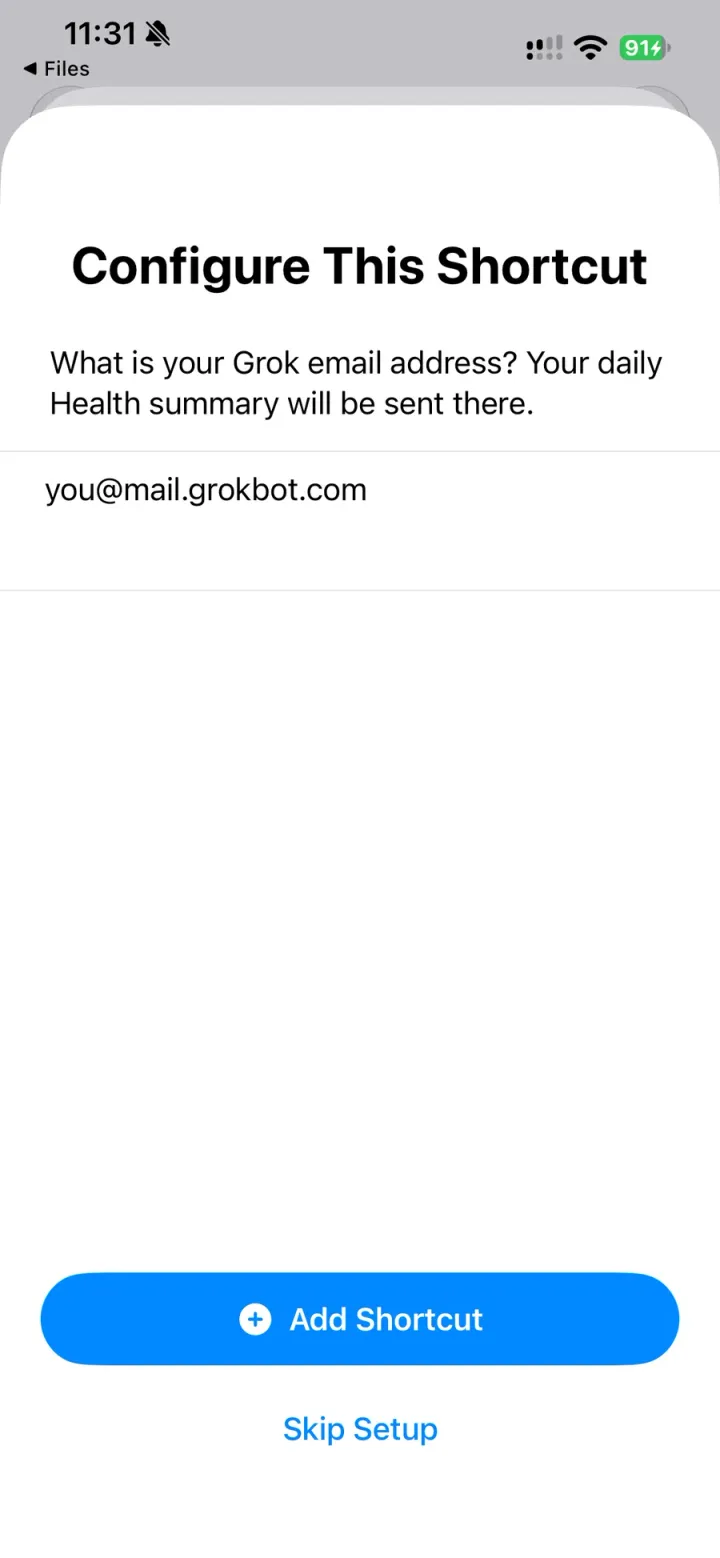
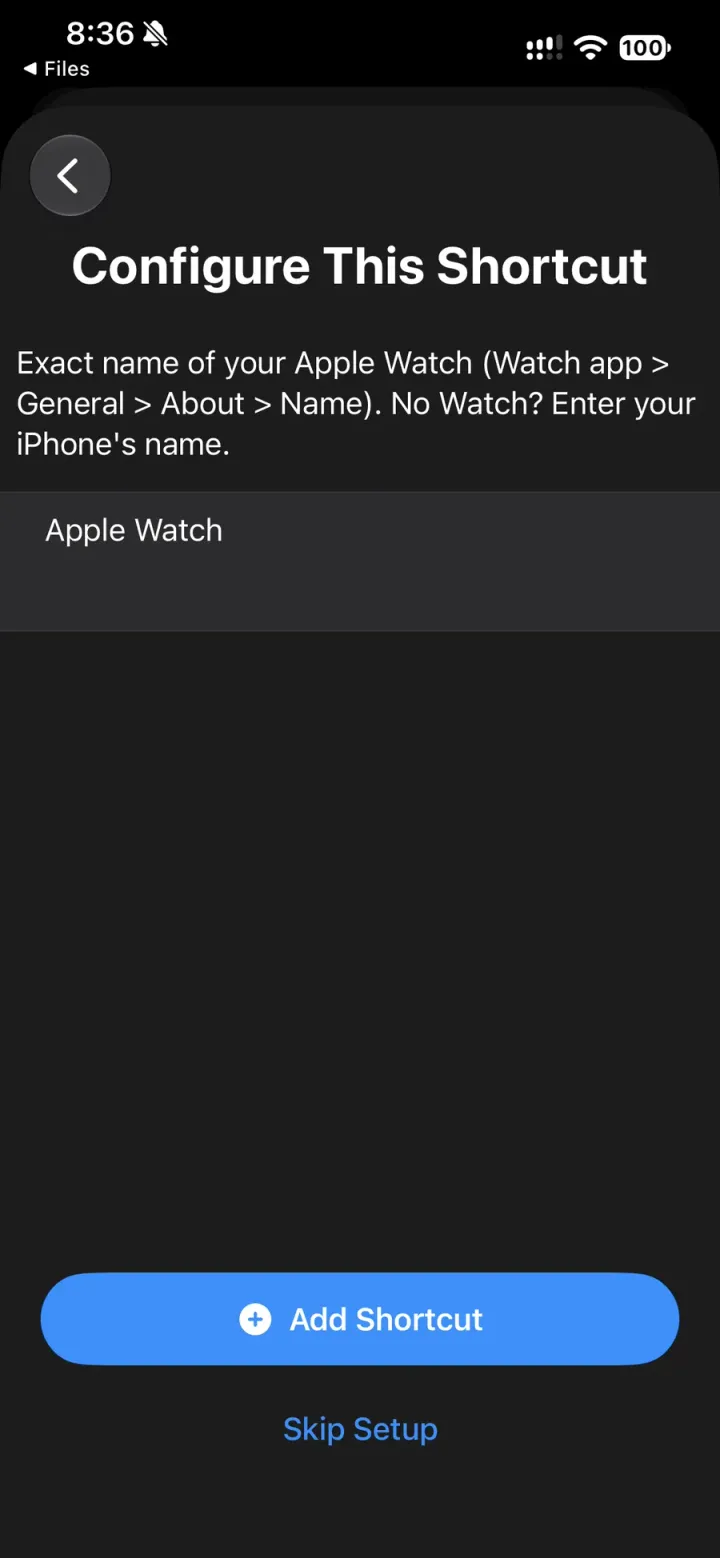
- Answer the two setup questions, then tap Add Shortcut: your Grok Bot email address, then the exact name of your Apple Watch (Watch app → General → About → Name). No Watch? Enter your iPhone’s name.
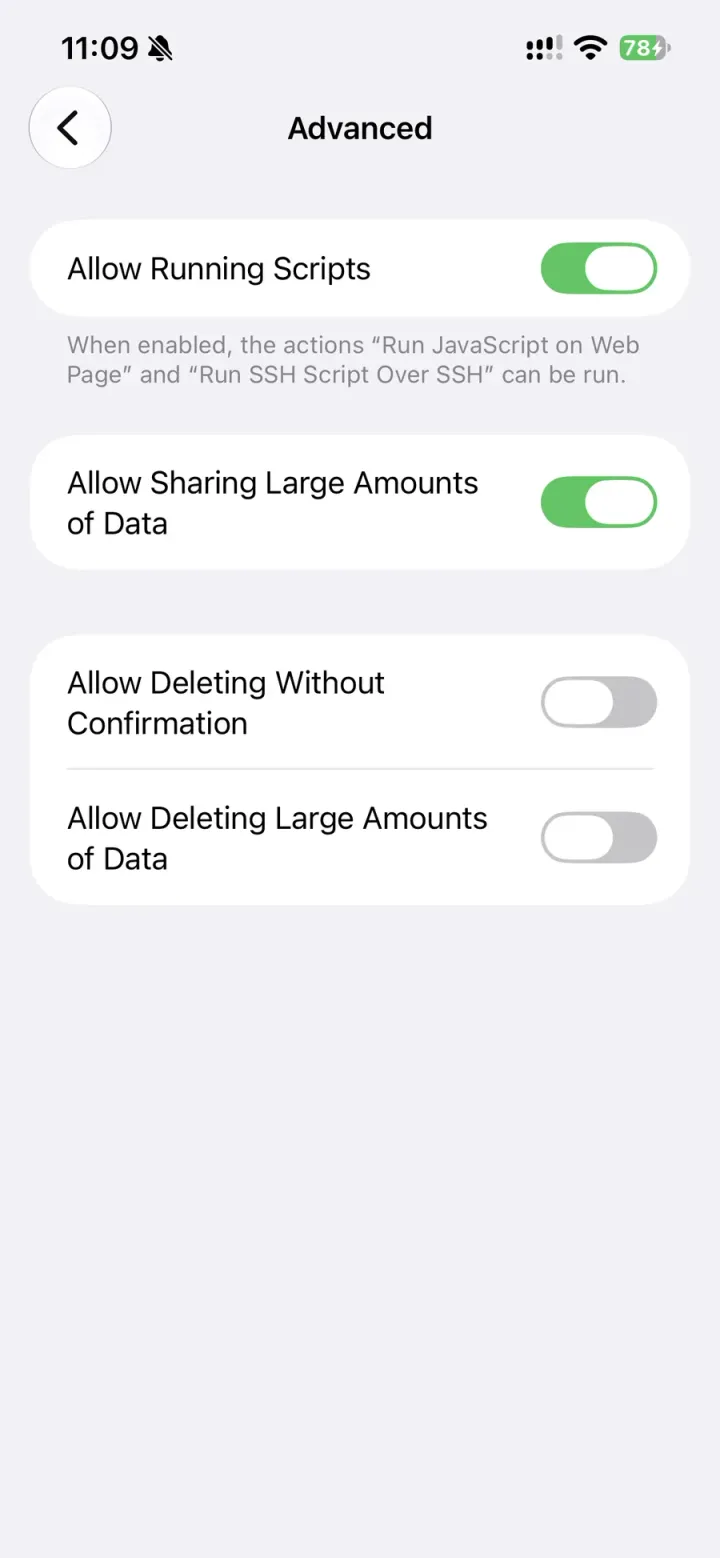
- Allow sharing larger amounts of data. Go to Settings → Apps → Shortcuts → Advanced → Allow Sharing Large Amounts of Data. Each email is built from a few hundred Health samples, and iOS blocks that by default.
- Run it once by hand.
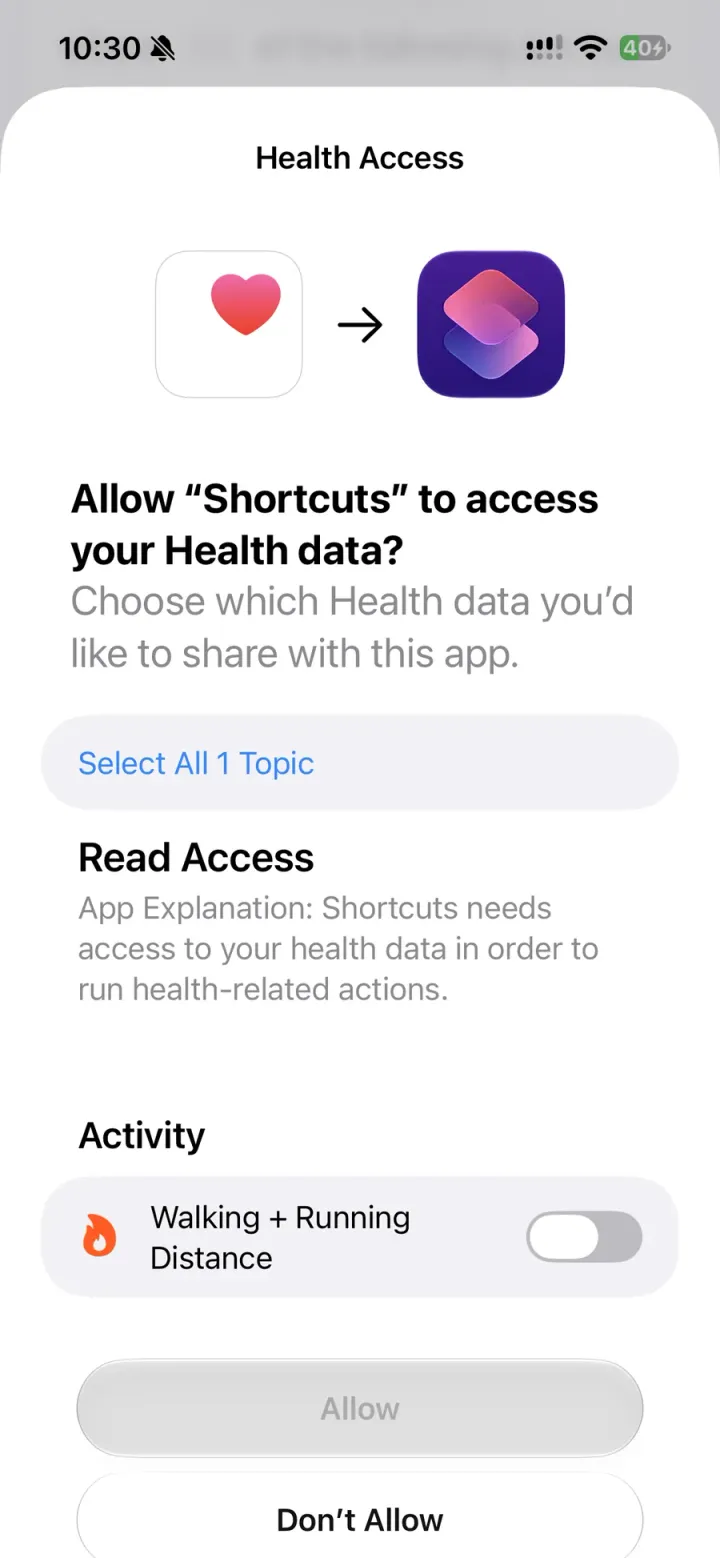
- Allow each Health data type it asks for. “Past 30 days and future data” is enough.
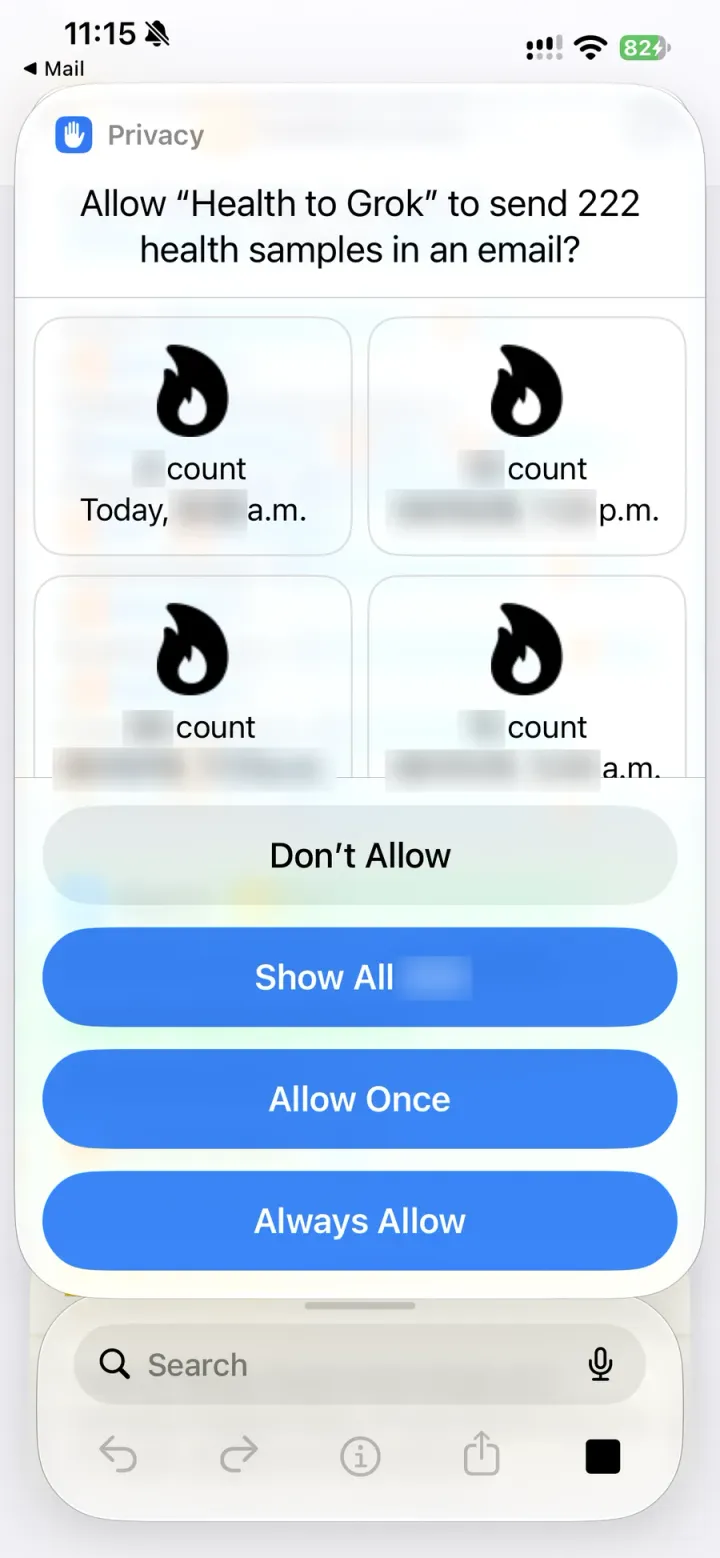
- When it asks to send health samples in an email, tap Always Allow. Do this for each of the two emails.
Make it daily
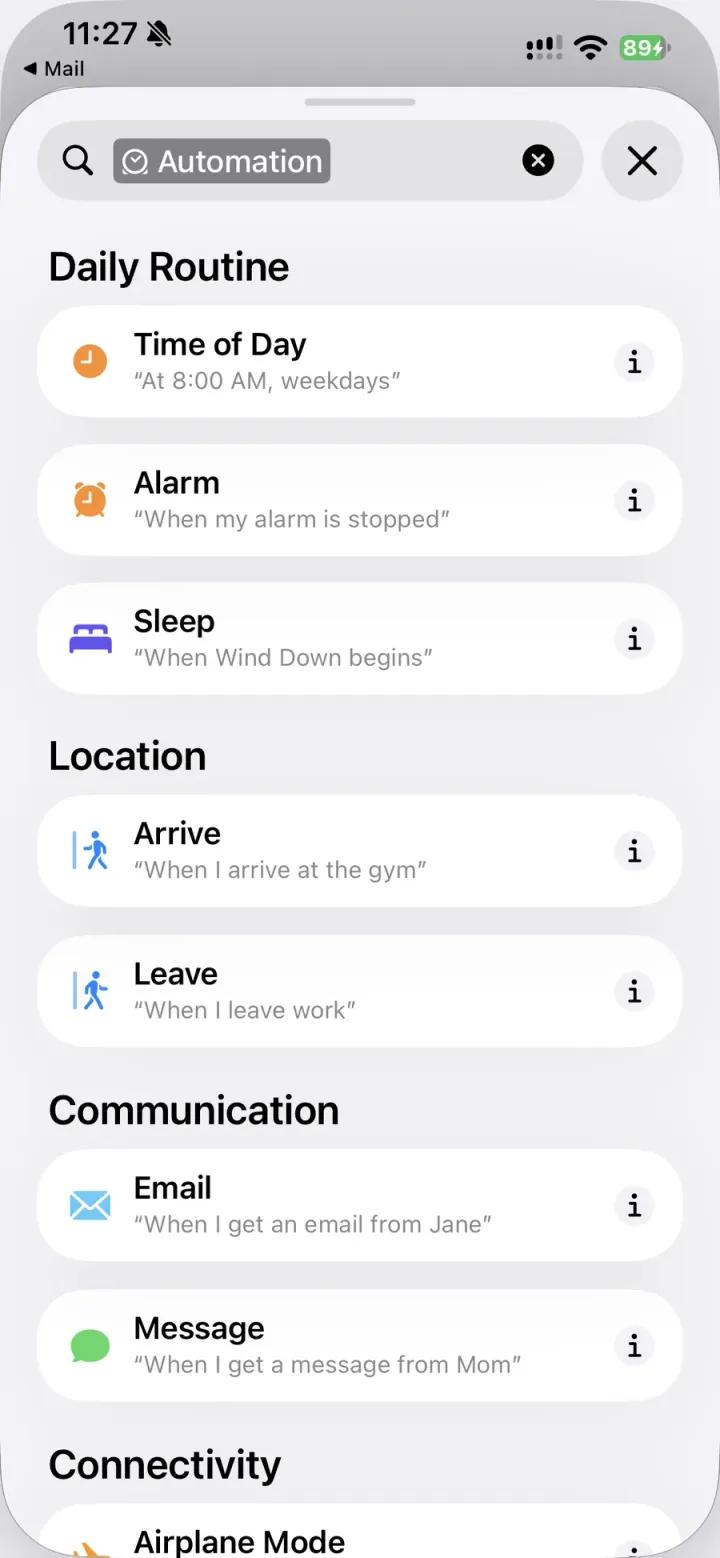
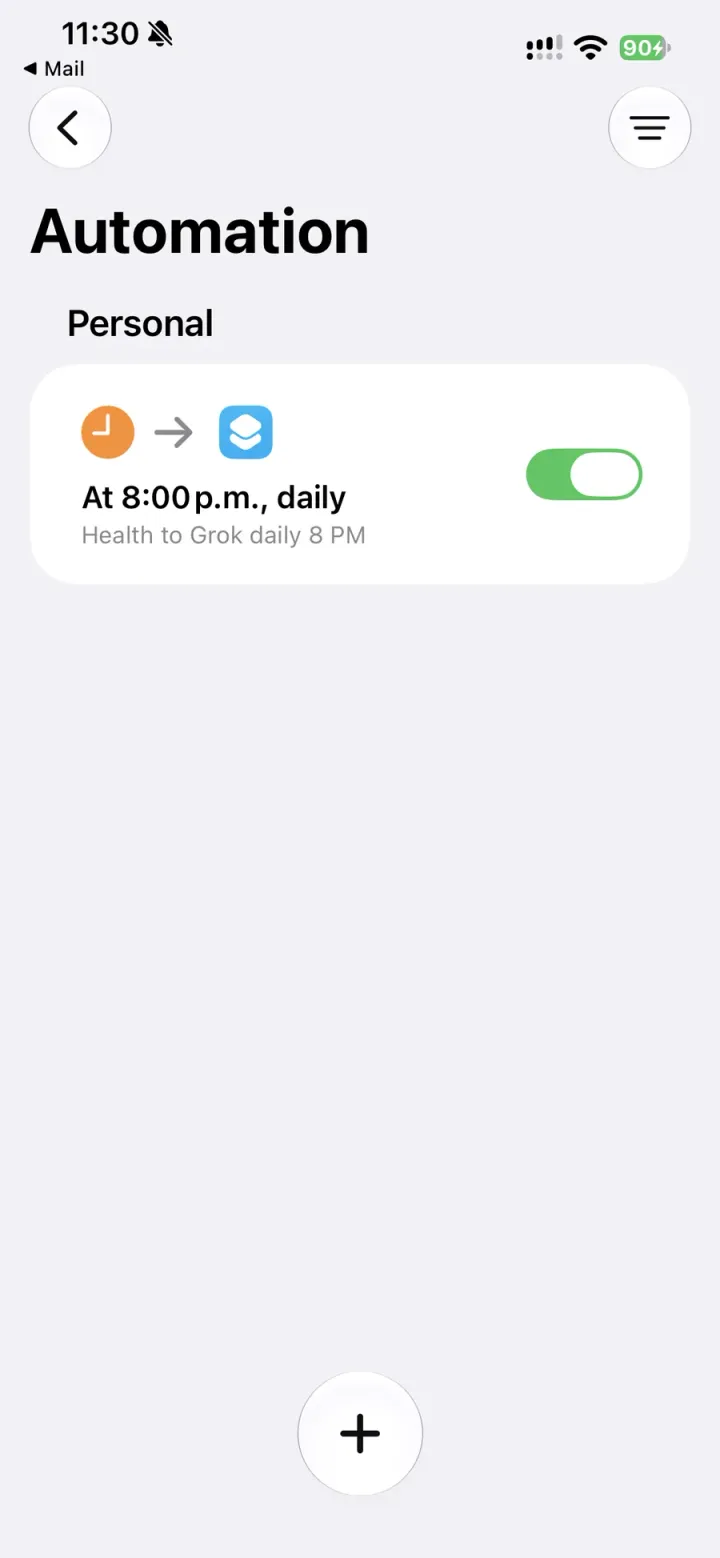
- Open the Shortcuts library and choose Automation, then tap +.
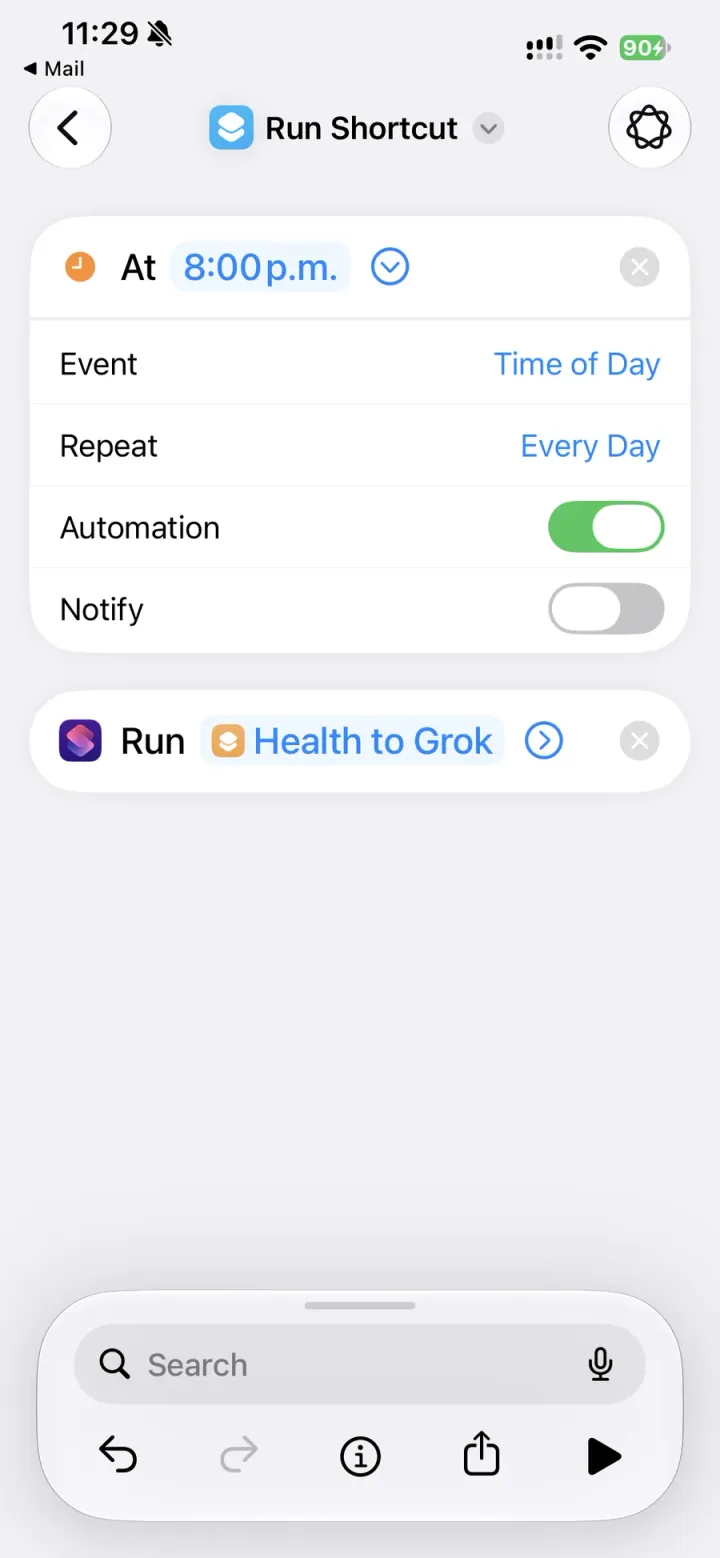
- Add the Time of Day trigger and set it to 8:00 PM, Repeat Every Day.
- Add Run Shortcut and pick the shortcut you just added.
- Keep Automation on and Notify off.
- Run the automation once by hand (open it and tap ▶). It asks “Allow … to run another shortcut?” Tap Allow. If you skip this, the 8 PM run stops at that question and nothing is sent.
Troubleshooting
- “No Samples Found” for some type. You have not recorded that type in the last 30 days, so iOS stops the shortcut. Open the shortcut and delete that metric’s actions: the Find Health Samples action plus the Get Item / Format Number actions right after it. This is why the extras are a separate email: a missing metric there does not block the daily summary.
- “No Samples Found” on steps or another daily total. The device name has to match exactly. Open the shortcut and check the second Text action.
- “Mail requires Face ID” / “An unknown error occurred” at Send Email. The Mail app is locked with Face ID. Long-press Mail → Don’t Require Face ID. A locked Mail app cannot send from a background automation.
- Nothing arrives. The shortcut sends through the Apple Mail app. You need an account set up in Mail, and the address in the shortcut’s Text action must be your Grok Bot one.
- No Apple Watch. Heart rate, HRV, blood oxygen, respiratory rate, and VO2 max need a Watch. Without one, enter your iPhone’s name at setup and delete those metrics, plus any other metric that reports No Samples Found.
Privacy
- Your Health data goes only to the address in the shortcut, from your own Mail account.
- Nothing else is stored or sent, and the shortcut reads at most the last 30 days.
- Do not share the “Health to Grok” copy from your own library. It contains your Grok Bot address, and anyone who taps Skip Setup would send their data to you. Share a clean copy with the placeholder address instead (Share → Copy iCloud Link), and keep that clean copy in your library or the link stops working.
How it is built
The shortcut is generated by code, not built by hand (build_shortcut.py), then signed with shortcuts sign --mode anyone. Built and tested on iOS 27.2.
Gotchas found while building it on iOS 27:
- Type names. Find Health Samples needs Shortcuts’ internal type names, not the ones its picker shows. For example, Active Energy is “Active Calories”, Blood Oxygen is “Oxygen Saturation”, Cardio Fitness is “VO2 Max”, and Stand Minutes is “Stand Time”. With the wrong name, Health never asks for permission and the action finds nothing.
- Empty results. Find Health Samples stops the whole shortcut when it matches nothing. Fill Missing does not prevent it.
- Grouping. Group by Day sums every row of every type, heart rate included, and it does not merge overlapping sources the way the Health app does. So grouping is only used for totals, each limited to one device with a Source filter; readings use the newest sample.
- Automations. They are now shortcuts that start with a trigger action (Automation → + → Time of Day).
If you are building similar agent workflows around personal data and discovery, the AI agents SEO pillar covers how to structure content and tools so assistants can cite them cleanly.
Frequently asked questions
What is Health to Grok?
Health to Grok is an iOS Shortcut that emails your Apple Health data to your Grok Bot inbox every night, so Grok Bot can use it until there is an official Apple Health integration.
What data does the shortcut send?
Every day at 8:00 PM it sends two emails. The daily summary covers steps, walking and running distance, flights climbed, active and resting energy, exercise and stand minutes, resting and walking heart rate, HRV, blood oxygen, respiratory rate, and VO2 max. The extras email covers today's heart-rate average, minimum and maximum, plus weight, body fat, water, dietary energy, and the last 24 hours of sleep stages. Each email has a readable summary, then the same data as CSV rows at the bottom.
Do I need an Apple Watch?
Heart rate, HRV, blood oxygen, respiratory rate, and VO2 max need an Apple Watch. Without one, enter your iPhone's name at setup and delete those metrics from the shortcut, plus any other metric that reports No Samples Found.
Will the numbers match the Health app?
Close, not always exact. Daily totals such as steps and active energy count one device, so the iPhone and Apple Watch are not added together. Anything only the other device recorded is left out, and on a day you do not wear the Watch the number can be low or from an earlier day. Each value shows its date.
Why does the shortcut ask to allow sharing larger amounts of data?
Each email is built from a few hundred Health samples, and iOS blocks that by default. Turn on Settings → Apps → Shortcuts → Advanced → Allow Sharing Large Amounts of Data.
Where does my Health data go?
Your Health data goes only to the address in the shortcut, from your own Mail account. Nothing else is stored or sent, and the shortcut reads at most the last 30 days.
What if I get No Samples Found?
You have not recorded that type in the last 30 days, so iOS stops the shortcut. Open the shortcut and delete that metric's actions: the Find Health Samples action plus the Get Item / Format Number actions right after it. Extras are a separate email so a missing metric there does not block the daily summary.